AI Agent for Mac: The Voice-First Assistant That Executes Across Your Apps (2026)
Say 'move my 3pm and tell the team in Slack' and it's done. An AI agent for Mac that talks back and acts across your apps, with every write confirmed.
TL;DR: An AI agent for Mac is software you talk to that actually does the work, not a chatbot that answers and not dictation that types. The most capable version is a continuous voice conversation: you hold a key and speak, it listens, talks back, asks when it needs to, and runs the right tools across your apps and your Mac, all in one session. mrmr is a voice-first interface built around exactly this. Agent Mode is a speech-to-speech agent that chains actions across Slack, Linear, Google Calendar, Gmail, Notion and more, searches the web, runs your own scripts, works with your files and reminders, reads your screen when you ask it something about what you’re looking at, and hands big jobs to background sub-agents. Reads are free; anything that writes is confirmed first. Currently in private beta.
For 40 years, the unit of work on a computer has been the click. You open an app, find a button, fill a field, submit. Every task, however small, is a sequence of physical interactions with a UI.
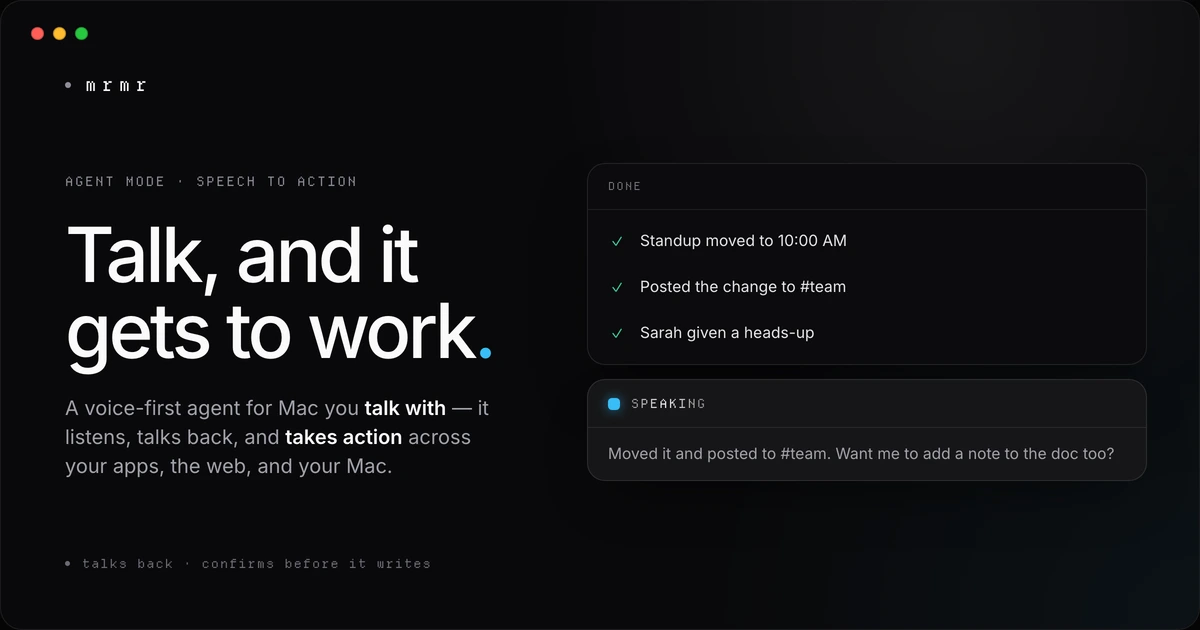
That unit is changing. The next one isn’t a click. It’s a spoken intent, held in a conversation. You say “what’s my day look like, and can you push standup to 10 and tell the team?” and something on the other side listens, works out the steps, does them across two apps, and tells you it’s done, out loud, while you keep talking. That something is an AI agent.
This is a guide to what “AI agent for Mac” actually means in 2026: the two very different architectures hiding under the same label, and what it’s like when the agent is something you talk with rather than something you type at.
What is an AI agent for Mac?
An AI agent for Mac is software that takes an instruction in natural language and carries it out on your behalf, across the apps and tools you already use. The distinction that matters is execution. A chatbot answers you. An agent acts.
Three things separate an agent from everything before it:
It understands intent, in conversation. You don’t memorize commands. You talk the way you’d talk to a capable teammate (“ping Sarah about the PR,” “actually, make that high priority,” “what did I miss in #eng this morning?”), and it follows, keeping context across turns instead of forcing one rigid command at a time.
It acts across your applications. The agent doesn’t just produce text; it sends the Slack message, creates the Linear issue, moves the calendar event, starts the meeting, runs the script. It both reads (to find context) and writes (to get things done).
You stay in control. Reading your calendar, searching the web, looking up a file: those happen freely. Anything that writes to your apps or your Mac is shown to you and waits for your approval. Destructive actions always ask first. The agent is powerful precisely because that boundary is firm.
Miss any of those and you have something else: a voice assistant (rigid commands, can’t touch third-party apps), a dictation tool (types, doesn’t act), or a chatbot (talks, doesn’t execute).
The two kinds of AI agent on a Mac
Most comparison lists miss the biggest split. “AI agent for Mac” now covers two fundamentally different architectures.
Screen-control agents drive your desktop the way a person would: they read the screen and click, type, and scroll through your apps using macOS Accessibility APIs. The appeal is reach. In principle they can operate anything on screen, even apps with no API. The cost is reliability and trust. Driving a UI is brittle: a moved button, a slow pane, or an unexpected dialog breaks the run. They’re slower, because they simulate a human at the wheel. And an agent that continuously watches and controls your whole screen is a lot to hand over.
Integration-native agents act through real application APIs instead of pretending to be your cursor. Say “message engineering that the deploy is done” and the agent calls Slack directly. It doesn’t hunt for the channel on screen and type into it. This is faster and far more reliable, because it speaks each app’s own language. Its natural limit, only reaching what it has a connector for, is exactly the ceiling that running your own scripts removes (more below).
mrmr is the second kind, wrapped in a voice conversation. It executes structured actions through real integrations, talks with you while it works, and, when a task reaches past its connectors, runs one of your local scripts rather than scraping your screen. For day-to-day knowledge work (messages, tickets, calendar, status updates, lookups), the integration-native approach is the one that holds up under repeated use.
The two kinds split on how an agent acts, not on whether it can see. mrmr can look at your frontmost window when you ask it to, behind an optional permission: point at a button, read an error, pull the figures off a chart so the next step can use them. What it will not do is act by clicking through your interface. Seeing something on screen and then sending the Slack message through Slack’s API is a different bargain from letting an agent take the wheel.
What talking to a voice agent actually feels like
This is where an agent built around voice diverges most from a confirm-and-execute box. There’s no wake word and no one-shot command. You press one key (Fn + Shift in mrmr), and you’re in a live conversation that starts the instant you press it, because a warm connection is kept ready.
A real session, start to finish:
You: “What’s my day look like tomorrow?”
It reads your calendar and speaks back: “Three meetings: standup at 9, design review at 11:30, and a 1:1 with Sam at 3.” A compact panel shows the list.
You: “Bump standup to 10 and give the team a heads-up.”
It parses two actions across two apps, shows you the writes to approve, then executes. “Moved it, and posted the change to #team.”
You: “What did I miss in #eng this morning?”
It reads the channel and summarizes out loud: “Three things stood out: the API review is blocking the release, staging is back up, and the demo moved to Friday.”
You: “Dig into our top three competitors and drop it in a Notion doc.”
It hands that off to a background agent: “On it. I’ll let you know when the doc’s ready.”
That’s four different jobs (a read, a chained cross-app write, a summary, a delegated research task) in one unbroken conversation. You never opened Calendar, Slack, or Notion. You never stopped to type. The agent listened, thought, spoke back, and asked when it needed to, the way a person would.
Three states cycle while it works (listening, thinking, speaking), surfaced in a small floating overlay so you always know where you are in the exchange. When speech is clearer than text it talks; when text is clearer (a list, a summary, a choice, a write to confirm) it draws a compact panel. That’s the loop.
It talks back, and that’s the point
The thing that makes this a conversation and not a command line is that the agent responds. It reads results aloud instead of dumping them on screen. It asks a clarifying question when your request is ambiguous rather than guessing. It confirms it understood before it does anything with consequences.
This matters more than it sounds. A one-shot voice command forces you to be complete and correct in a single breath, or start over. A conversation lets you be human: start vague, refine mid-thought, react to what it found, change your mind. “Actually, make that Friday.” “No, the other Sarah.” “Add a note to the doc too.” The agent absorbs the ambiguity; you don’t flatten your thinking to fit a syntax.
Chaining across apps in one breath
A single thought like “create the ticket and tell the team” should be one request, not two. The agent parses both actions, works out the dependency (the message needs the ticket link), and runs them in order:
- “Reply to Priya’s last email, add a follow-up to my calendar, and set a reminder to check in Friday.”
- “Start an instant meeting and send the link to the design channel.”
- “Schedule a follow-up at 2pm tomorrow and DM Sarah the details.”
It resolves the specifics because it’s workspace-aware: it knows your real Slack channels and teammates, your Linear projects and teams, your calendars. “#engineering,” “Sarah,” and “the design channel” map to the right things automatically, without you spelling out IDs.
Beyond connectors: your scripts and local tools
Every integration-based agent hits the same wall. It can only do what someone built a connector for. The moment your work involves your team’s deploy script, a one-off export, or a curl against an internal API, most agents fall away and you’re back at the keyboard.
mrmr removes that ceiling without screen-scraping. You can save any local script (shell, Python, Node, AppleScript) and run it by voice inside the same conversation. You speak the arguments, the script runs locally, and its output flows back to the agent so it can read, summarize, or act on the result:
- “Run the staging deploy” → it runs; the agent tells you whether it worked.
- “What’s the git status on the API repo?” → a one-line script returns it; the agent reads you the summary.
- “Export last week’s signups to CSV” → the script writes the file; the agent confirms the path and row count.
Because the result becomes context the agent holds, a script’s output can turn into the body of a Slack message or the description of a ticket. You can import the Raycast Script Commands you already have; imported scripts stay inactive until you review and trust them, and every run is logged.
Hand off the big stuff: background sub-agents
Some tasks are too big to wait on. Research, multi-step lookups, long summaries: you don’t want to sit through them. So the agent can delegate. It hands the job to a background sub-agent and keeps talking while it works. Ask for the status any time (“how’s that competitor research going?”), and the result lands in the app when it’s ready. Every run is saved, so you can come back to it later.
This is what keeps the conversation moving. The foreground agent stays responsive to you; the slow work happens off to the side.
It reaches your Mac, not just the cloud
An agent that only touches SaaS apps stops at the edge of your machine. This one doesn’t:
- Files: find files, open documents and folders, scoped to your home folder, and it only opens what you ask for.
- Apple Reminders: create, complete, update, and delete reminders and lists by voice.
- Your browser: search your history and bookmarks and reopen the right link (“open that pricing page I had up yesterday”).
- The web: ask a question mid-conversation and get a live, citation-backed answer.
- mrmr itself: connect or disconnect integrations, add words to your dictation dictionary, or jump to app pages, all by asking.
What it connects to
Agent Mode acts today across Slack, Linear, Google Calendar, Google Tasks, Google Meet, Zoom, Notion, Gmail, Cal.com, Calendly, Attio, Apple Reminders, and GitHub, with HubSpot, Jira, Microsoft Teams, and Microsoft Outlook on the roadmap. Beyond connected apps, it also runs built-in web search, on-Mac file and browser tools, and your own scripts.
Staying in control: reads are free, writes are confirmed
Handing a voice agent authority over your work tools only works if there’s a firm boundary, and there is one: it can read and prepare freely, but anything with consequences waits for your explicit yes. It reads your calendar without asking; it doesn’t move an event until you confirm. It fetches data with a script freely; it doesn’t send the resulting Slack message until you approve. Destructive actions (deleting a reminders list, disconnecting an app) always ask first.
A few things make that boundary trustworthy beyond the confirmation itself: your API keys and tokens never enter the model’s context, so they can’t leak; message bodies, web results, and file contents are treated as data, never as instructions the agent will follow (protection against prompt injection); and every integration is OAuth, scoped, and revocable. The confirmation step isn’t friction. It’s what makes it sane to give an agent real power.
AI agent vs Siri, chatbots, and desktop bots
| Siri / Apple Intelligence | AI chatbot (ChatGPT, Claude) | Screen-control agent | Voice agent (mrmr) | |
|---|---|---|---|---|
| Primary job | Answer, act in Apple and integrated apps | Converse, draft, reason | Automate the desktop UI | Talk with you and take action |
| How it acts | Apple apps + apps that integrate with Siri | Text you copy and paste | Clicks & types on your screen | Real app APIs + your scripts |
| Continuous voice conversation | Partial (Siri AI, beta) | Partial (mostly text) | ✗ | ✓ (speech-to-speech) |
| Acts across third-party work apps | Limited (app must integrate) | ✗ (no execution) | Fragile (UI-dependent) | ✓ |
| Chains steps in one request | In Apple’s apps (beta) | ✗ | Rarely | ✓ |
| Confirms before it writes | Not documented | N/A | Usually not | ✓ |
| Runs your own scripts | ✗ | ✗ | Sometimes | ✓ |
| Trigger | Wake word / button | App window / shortcut | Varies | Hold a key, speak |
Siri and Apple Intelligence. Siri AI, rolling out in beta with macOS 27 since September 2026, is a real step up: it is conversational, understands what’s on screen, chains steps across Apple’s own apps, and acts in third-party apps that integrate with it. Its center of gravity is still Apple’s apps and consumer apps like WhatsApp; how far it reaches into the work tools a knowledge worker runs all day depends on each developer integrating with it.
AI chatbots. ChatGPT and Claude are exceptional at reasoning and drafting, and voice mode is conversational, but the output is text for you to act on. They compose the message; you still send it. That’s assistance, not execution.
Screen-control bots. These do execute, and can reach apps with no API, but they do it by driving your screen, which is slower and breaks when the UI shifts. For structured, repeated work, an agent that speaks your apps’ APIs is steadier than one imitating your cursor.
A voice agent is the one you actually talk with: it listens, acts across your real apps, reads results back, and confirms writes. Different in kind, not just degree.
Why AI agents on Mac are viable now
Two shifts made this category possible, and they explain why voice assistants failed for a decade and agents suddenly work. Transcription got fast and accurate enough that speaking beats reaching for the mouse, and LLMs got flexible enough to turn messy, half-formed speech into structured actions reliably. A third shift, the confirmation UI, made it trustworthy to give that capability real power. We go deeper in what is a voice-first interface and speech-to-action.
Who an AI agent for Mac is for
The clearest fit is anyone whose work is scattered across tools that don’t talk to each other. Founders, developers, and product managers living in Slack, Linear, GitHub, and Google Calendar feel the switching tax hardest: every ticket, message, and event is a context switch away from the real work. Collapsing those into a spoken sentence is where the hours come back.
There’s also a real accessibility dimension. For anyone who can’t comfortably rely on a keyboard and mouse (repetitive strain, motor impairment, or a temporary reason like a wrist injury or an infant in one arm), an agent you can hold a full conversation with, one that executes application-level actions by voice, changes what’s possible at a computer.
How to get started
- Install mrmr on macOS (private beta: join the waitlist, or book a setup call for fast-track access).
- Grant Microphone and Accessibility permissions.
- Connect the apps you want the agent to act in (Slack, Linear, Google Calendar, and the rest) from the integrations screen.
- Optionally, add local scripts: install from the starter gallery, import your Raycast Script Commands, or write one in the built-in editor. Review and trust each before it can run.
- Press Fn + Shift and start talking. For plain dictation into any text field, hold Fn instead.
Frequently asked questions
What is an AI agent for Mac? An AI agent for Mac is software you instruct in natural language that then executes across your apps and tools, sending a message, moving an event, running a script, rather than just answering or typing. mrmr’s Agent Mode is a voice example: you hold a key and talk, and it listens, talks back, and carries out the work, confirming anything that writes.
Is Agent Mode just one voice command at a time? No. It’s a continuous, speech-to-speech conversation. It can ask clarifying questions, chain several steps, read results back to you, and keep going across turns in one session, instead of making you trigger each step separately.
How is it different from Siri? Siri AI (rolling out in beta with macOS 27) can now hold a conversation, see your screen, chain steps across Apple’s apps, and act in third-party apps that integrate with it. A voice agent like mrmr is built for work tools instead: it connects to Slack, Linear, Notion, Gmail, Google Calendar, and more through their APIs, chains steps across them in one request, and confirms every write before it runs.
How is it different from ChatGPT or Claude? Chatbots reason and draft, and can converse by voice, but the output is text you act on. They compose the message; you send it. An agent executes: it sends the message, moves the event, runs the script, with your confirmation for writes.
Does the agent do anything without asking me? It reads, searches, and prepares freely, but anything that writes to your apps or Mac shows a confirmation first, in plain language. Destructive actions always ask. Nothing with side effects runs without your approval.
Can it work on something in the background? Yes. Hand bigger tasks (research, summaries, multi-step lookups) to a background sub-agent and keep talking while it works. Ask for the status any time, and every run is saved so you can return to the result.
Which apps can it take action in? Today: Slack, Linear, Google Calendar, Google Tasks, Google Meet, Zoom, Notion, Gmail, Cal.com, Calendly, Attio, Apple Reminders, and GitHub, with HubSpot, Jira, Microsoft Teams, and Microsoft Outlook on the roadmap. It also searches the web with sources, finds and opens files, manages Apple Reminders, searches your browser history and bookmarks, and runs your own scripts.
Can it run my own scripts and tools? Yes. Save any local script, or import your Raycast Script Commands, and run it by voice mid-conversation. You speak the arguments, the script runs locally, and its output flows back so the agent can act on it. Scripts stay inactive until you review and trust them.
Do I have to use voice? Voice is the primary way to drive it, but it works alongside your keyboard and mouse, not instead of them. You keep those for visual and precise work; voice handles the multi-app actions where talking is faster than clicking.
Try it
mrmr is a voice-first AI agent for Mac, currently in private beta. Hold one key and talk: it listens, talks back, and executes across Slack, Linear, Google Calendar, Gmail, Notion and more, plus your own scripts and your Mac, confirming anything that writes.
Join the waitlist or Book a 20-minute demo
Sources
- Apple, Siri AI, a profoundly more capable and personal assistant, is here (September 14, 2026). Siri AI’s beta rollout with macOS 27, onscreen awareness, multi-step actions, actions in third-party apps such as WhatsApp and Audible, and the M3 / 12GB requirement for more advanced dictation.
- 9to5Mac, Five ways that the new Siri AI is frustrating iPhone and Apple Watch users (September 20, 2026). Siri AI’s gradual waitlist rollout, still labeled beta.
Related reading:
- What Is an AI Voice Agent? (And What It Isn’t)
- Every AI Assistant That Can Act on Your Mac (2026)
- What Are Background Agents? (And How to Delegate to One by Voice)
- What Is a Voice-First Interface? (And Why It’s Not a Voice Assistant)
- Speech-to-Action (Voice-to-Action): Voice on Your Mac Should Do More Than Type
- Run Your Own Scripts by Voice on Mac (Raycast Script Commands, Hands-Free)
- The Switching Tax: How Much Productivity You Lose Every Time You Switch Apps
- Voice Commands on Mac: 20+ Hands-Free Shortcuts for 2026

