Voice Commands on Mac: 20+ Hands-Free Shortcuts for 2026
Every kind of Mac voice command in one list: dictation commands, Voice Control commands, Siri, and voice commands that act in Slack, Linear, and Google Calendar. How to turn each on.
TL;DR: macOS has three tiers of voice control. Built-in dictation handles speech-to-text. Siri handles system tasks and Apple’s apps, and the new Siri AI (in beta with macOS 27) reaches only the third-party apps that integrate with it. Speech-to-action tools like mrmr go further, executing real commands across Slack, Linear, Google Calendar, Google Meet, Zoom, and more from a single voice command. This guide covers what each tier can and can’t do.
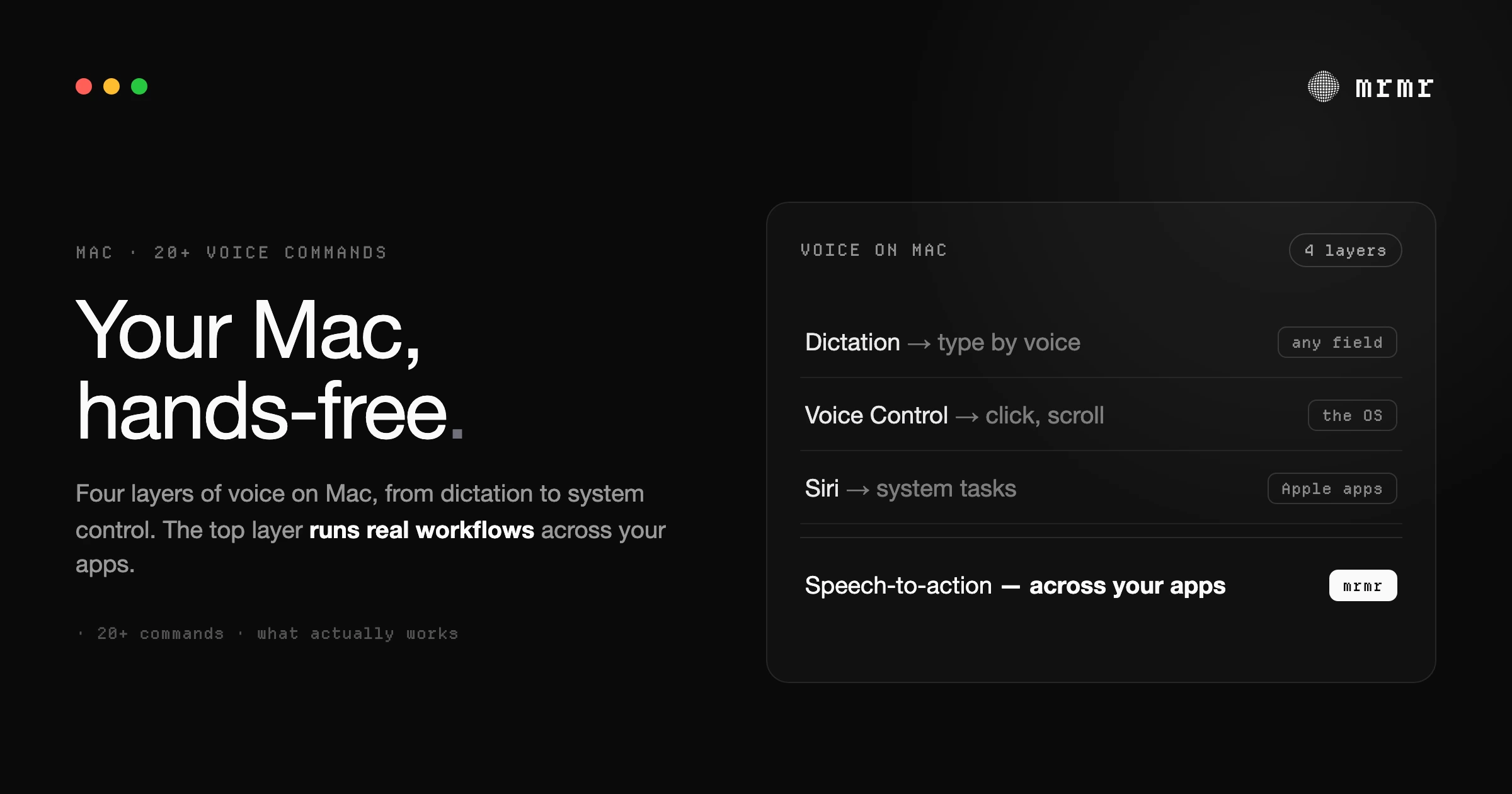
Voice commands on Mac have been around for years, but most people give up on them quickly. You try Siri, it can’t do what you need. You try dictation, it just types. You go back to clicking and typing across six apps.
The problem isn’t that voice doesn’t work on Mac. It’s that what “works” has been limited to two things: converting speech to text and asking Siri basic questions. That’s it. If you wanted to create a ticket in Linear, message a teammate in Slack, or start a Zoom meeting, you were on your own.
That’s starting to change. Here’s what voice commands on Mac can actually do in 2026, broken down by what’s built in and what requires third-party tools.
Mac voice commands built into macOS
macOS ships with two voice features: Dictation and Voice Control.
Dictation converts speech to text in any text field. Press the Microphone key (or your Dictation shortcut, set under System Settings → Keyboard → Dictation) and speak; the text appears at your cursor. It adds commas, periods, and question marks automatically in supported languages, and it understands spoken commands for formatting, listed below. What it doesn’t do is rewrite what you meant: a self-correction like “Tuesday, no, Wednesday” is typed as you said it. macOS 27 adds more advanced dictation, which Apple says handles capitalization, punctuation, and formatting as you speak, on M3 or later Macs with at least 12GB of memory; Apple doesn’t describe it as removing filler words. If clean dictation is all you’re after, compare the dedicated tools in our guide to the best dictation apps for Mac.
Voice Control is an accessibility feature that lets you operate your Mac entirely by voice. You can open apps, click buttons, navigate menus, and select text with commands like “Click Done” or “Scroll down.” It’s powerful for accessibility but slow for everyday productivity: you’re narrating mouse actions instead of skipping them.
Neither of these can act on the content of your work apps. You can’t say “send a message in Slack” or “create a Linear ticket.” They operate on the screen, not on the app’s data.
Mac voice commands cheat sheet
The built-in commands, as Apple documents them. Say them exactly as written.
Dictation commands (while dictating)
| Say | You get |
|---|---|
| ”new line” | A line break |
| ”new paragraph” | A paragraph break |
| ”comma”, “period”, “question mark”, “exclamation mark” | The punctuation mark |
| ”colon”, “semicolon”, “dash”, “ellipsis” | The punctuation mark |
| ”caps on” … “caps off” | Title Case for the words in between |
| ”all caps” | The next word in CAPITALS |
| ”no space on” … “no space off” | The words in between run together |
| ”dollar sign”, “euro sign”, “copyright sign” | $, €, © |
Our guide to Mac dictation covers the rest of the dictation commands and how to fix common problems.
Voice Control commands
| Say | What happens |
|---|---|
| ”Open Mail” (or any app name) | Opens the app |
| ”Click Done” (or any button or menu name) | Clicks it |
| ”Scroll down” / “Scroll up” | Scrolls the frontmost window |
| ”Show numbers” | Numbers every clickable item, so you can say the number |
| ”Show grid” | Overlays a numbered grid for clicking anywhere |
| ”Dictation mode” / “Command mode” / “Spelling mode” | Switches between typing what you say, commands only, and spelling letter by letter |
| ”Stop listening” / “Start listening” | Pauses and resumes Voice Control |
| ”Show commands” | Opens the full list of commands you can say |
The full list, with examples, is under System Settings → Accessibility → Voice Control → Commands.
Siri
Siri isn’t a fixed command list: you ask in plain language. Press and hold the Microphone key, click Siri in the menu bar, or say “Siri” or “Hey Siri” if you’ve turned that on in System Settings → Siri. Typical requests are timers, opening apps, sending iMessages, and creating reminders and calendar events in Apple’s apps.
Voice commands for your work apps (mrmr)
| Say | What happens |
|---|---|
| ”Message the engineering channel that the deploy is done” | Posts to Slack after you confirm |
| ”Create a high-priority Linear ticket for the search bug” | Creates the Linear issue after you confirm |
| ”Move my 3pm meeting to 4pm” | Moves the Google Calendar event after you confirm |
| ”Add a task to review the pull request by end of day” | Adds it to Google Tasks after you confirm |
| ”Start an instant Zoom” | Creates the Zoom meeting and gives you the join link, after you confirm |
| ”What’s on my calendar this afternoon?” | Reads it back; no confirmation needed |
More of these, and how chaining works, are in the sections below.
How to turn on voice commands on Mac
- Dictation: System Settings → Keyboard → Dictation, then turn it on. Start it with the Microphone key or the shortcut shown there.
- Voice Control: System Settings → Accessibility → Voice Control, then turn it on. An interactive tutorial is in the same place.
- Siri: System Settings → Siri, then click Turn on Siri.
- Voice commands that act in your work apps: install a voice-to-action tool such as mrmr and connect the apps you use.
What Siri can do, and where it stops
Siri on Mac handles a set of built-in commands: setting timers, opening apps, checking the weather, playing music, sending iMessages, and creating reminders. It also works with Apple’s own apps: Calendar, Mail, Notes, and Reminders.
With macOS 27, Apple began rolling out Siri AI in beta (English first, via a gradual waitlist, on Macs that support Apple Intelligence). It is conversational, can answer questions or take actions about what’s on your screen, can chain steps across Apple’s apps (find a suggestion in Messages, pull the details from Mail, add items to Reminders), and can act in third-party apps that integrate with it, such as WhatsApp and Audible.
Where Siri still stops is your work stack. Apple’s examples are its own apps and consumer apps; whether you can ask it to create a Linear ticket or post in a Slack channel depends on those developers integrating with Siri. On Macs without Apple Intelligence, you have the classic Siri, which needs specific phrasing and often falls back to a web search.
For anyone whose work lives in Slack, Linear, Jira, Notion, Google Calendar, or Zoom, that gap is what a speech-to-action tool fills.
Speech-to-action: voice commands that execute across apps
Speech-to-action is the next tier of voice commands on Mac. Instead of converting speech to text or handling basic system tasks, speech-to-action parses a natural language voice command and executes it as a real workflow across applications.
mrmr is a voice-first interface for Mac that enables speech-to-action. You hold one keyboard shortcut, speak a command in natural language, and mrmr parses your intent, shows you what it’s about to do, and executes it across Slack, Linear, Google Calendar, Google Tasks, Google Meet, and Zoom after you confirm.
Here’s what that looks like in practice with real commands you can run today.
Slack voice commands
Tell mrmr what to send and where. It knows your actual workspace: channels, teammates, and DMs. (For a deeper walkthrough, see the complete guide to voice commands for Slack.)
- “Message the engineering channel that the deployment is complete”
- “Send Sarah a DM that I’ll be 10 minutes late”
- “Tell the design channel the new mockups are ready for review”
mrmr parses the recipient, composes the message, and shows you a confirmation card before anything sends.

Linear voice commands
Create and manage tickets by voice. mrmr understands priority levels, team names, and project context from your connected Linear workspace.
- “Create a high-priority ticket for the authentication timeout bug”
- “Create a Linear issue for updating the onboarding flow, assign it to me”
- “Make a bug ticket for the broken search filter in the dashboard”
Each command generates a structured ticket with the fields populated from your voice input, ready for review before it’s created.

Google Calendar voice commands
Create, modify, delete, and query calendar events by voice.
- “Schedule a team standup tomorrow at 10am”
- “Move my 3pm meeting to 4pm”
- “What’s on my calendar this afternoon?”
- “Delete the sync meeting on Friday”
Calendar commands can be used standalone or chained with other actions.
Google Tasks voice commands
Create and manage tasks by voice.
- “Add a task to review the pull request by end of day”
- “Create a task to follow up with the design team this week”
Google Meet and Zoom voice commands
Start or schedule meetings and get shareable links without clicking through either app.
- “Start an instant Zoom” creates a Zoom meeting and gives you the join link
- “Create a Meet link I can share” does the same for Google Meet
- “Schedule a Zoom for Thursday at 3pm” sets up a scheduled meeting
Creating a meeting is a write, so mrmr shows it to you before it runs. The link can then be copied, opened, or chained into another action.
Chained voice commands: the real power
The above commands work individually, but the real shift is chaining them. One voice command triggers multiple actions across multiple apps. Each action can use the output of the previous one.
- “Create a Linear ticket for the payment timeout and message engineering in Slack with the ticket link” creates the ticket, then sends a Slack message with the actual link to the newly created ticket
- “Start an instant Zoom and send the link to the engineering channel” creates the Zoom meeting, then posts a Slack message to #engineering with the join link
- “Schedule a follow-up at 2pm tomorrow and send Sarah the calendar invite link” creates the calendar event, then sends a Slack DM with the details
- “Create a task to review the PR and message the team that I’m on it” creates a Google Task and sends a Slack message
Every write in a chain shows a confirmation card before it runs, so you can approve, change, or cancel each step.


Comparison: voice command capabilities on Mac
| Capability | macOS Dictation | Voice Control | Siri | mrmr |
|---|---|---|---|---|
| Speech to text in any app | ✓ | ✓ | ✗ | ✓ |
| Filler-word removal | Not documented by Apple | Not documented by Apple | ✗ | ✓ |
| Click buttons and menus by voice | ✗ | ✓ | ✗ | ✗ |
| System commands (open apps, settings) | ✗ | ✓ | ✓ | Partial (open apps, volume, brightness) |
| Send Slack messages by voice | ✗ | ✗ | ✗ | ✓ |
| Create Linear tickets by voice | ✗ | ✗ | ✗ | ✓ |
| Manage Google Calendar by voice | ✗ | ✗ | Partial (Apple Calendar only) | ✓ |
| Create Google Tasks by voice | ✗ | ✗ | ✗ | ✓ |
| Start Zoom / Google Meet by voice | ✗ | ✗ | ✗ | ✓ |
| Chain multiple actions in one command | ✗ | ✗ | Apple’s apps (Siri AI beta) | ✓ |
| Confirmation before execution | N/A | N/A | N/A | ✓ |
| Web search with cited sources | ✗ | ✗ | Web search only | ✓ (built into the voice agent) |
What’s coming next for voice commands on Mac
mrmr currently supports Slack, Linear, Google Calendar, Google Tasks, Google Meet, Zoom, Notion, Gmail, Cal.com, Calendly, Attio, Apple Reminders, and GitHub. HubSpot, Jira, Microsoft Teams, and Microsoft Outlook integrations are on the roadmap.
The longer-term trajectory is voice as a full control layer for your Mac: not just executing individual commands, but learning your patterns and orchestrating workflows across your entire toolset. The foundation for that starts with proving that voice commands can reliably do real work, not just type text or check the weather.
Frequently asked questions
What are the voice commands on Mac?
macOS has three sets. Dictation commands format text while you dictate (“new line”, “new paragraph”, “comma”, “caps on”). Voice Control commands operate the screen (“Open Mail”, “Click Done”, “Scroll down”, “Show numbers”). Siri takes plain-language requests for Apple’s apps and system tasks. Voice commands that act inside work apps like Slack, Linear, and Google Calendar need a voice-to-action tool such as mrmr.
How do I turn on voice commands on Mac?
Turn on Dictation in System Settings → Keyboard → Dictation, Voice Control in System Settings → Accessibility → Voice Control, and Siri in System Settings → Siri. Each works independently, so you can use any combination.
How do I see every Voice Control command?
Say “Show commands” while Voice Control is on, or open System Settings → Accessibility → Voice Control → Commands. The list changes with the app you’re in.
Can I send a Slack message or create a Linear ticket by voice on Mac?
Not with the built-in tools: Dictation only types, Voice Control operates what’s on screen, and Siri acts in third-party apps only if they’ve integrated with it. A voice-to-action tool such as mrmr connects to Slack and Linear directly, so “message the design channel that the mockups are ready” posts the message after you confirm it.
Try it
mrmr is a voice-first interface for Mac, currently in private beta.
Join the waitlist or Book a 20-minute demo
Sources
- Apple, Dictate messages and documents on Mac (Mac User Guide, accessed October 2026). Turning on dictation, automatic punctuation, no timeout with a stop after 30 seconds of silence, typing while dictating on Apple silicon, languages, and on-device processing.
- Apple, Use Voice Control commands on Mac (Mac User Guide, accessed October 2026). Voice Control commands (“Open Mail”, “Scroll down”, “Click Done”, “Show numbers”, “Show grid”, “Stop listening”), the Commands list in Voice Control settings, and how to turn it on.
- Apple, Turn on and activate Siri on Mac (Mac User Guide, accessed October 2026). Turning on Siri and the ways to activate it.
- Apple, Commands for dictating text on Mac (Mac User Guide, accessed October 2026). The punctuation, formatting, capitalization, and spacing commands.
- Apple, Siri AI, a profoundly more capable and personal assistant, is here (September 14, 2026). Siri AI’s beta rollout with macOS 27, onscreen awareness, multi-step actions, actions in third-party apps such as WhatsApp and Audible, and the M3 / 12GB requirement for more advanced dictation.
- 9to5Mac, Five ways that the new Siri AI is frustrating iPhone and Apple Watch users (September 20, 2026). Siri AI’s gradual waitlist rollout, still labeled beta.
Related reading:

