Run Your Own Scripts by Voice on Mac (Raycast Script Commands, Hands-Free)
Run your own local scripts by voice on Mac. Import your Raycast Script Commands, speak arguments out loud, and have the output flow back to a voice agent that keeps working. Here's how scripts-by-voice works and why it changes what voice-to-action can reach.
TL;DR: Every voice-to-action tool, mrmr included, used to be capped by its integration list: it could only do what someone had pre-built a connector for. Scripts remove that ceiling. Save any local script in mrmr, then run it by voice in Agent Mode — speak the arguments out loud, and the script’s output flows back to the agent so it can keep working with the result. You can import the Script Commands you already use in Raycast (they stay inactive until you review and trust them), write new ones in a built-in editor, and watch every run in a Runs tab. This is the difference between a voice interface that does a fixed set of things and one that does whatever you can script.
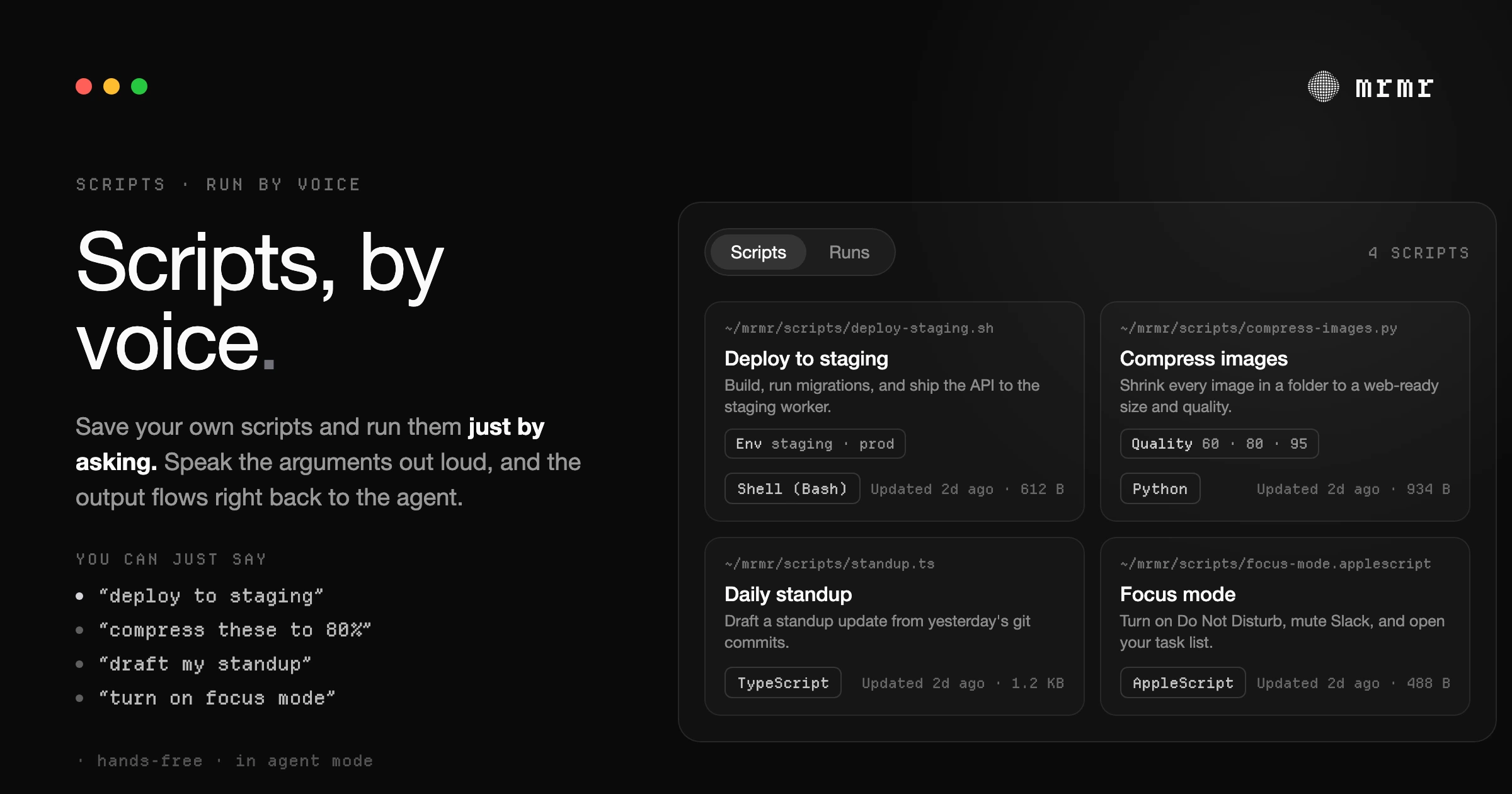
There’s a ceiling every voice tool hits, and almost nobody talks about it.
You can dictate into any app — plenty of dictation apps for Mac do that well. You can, with the right tool, send a Slack message or create a Linear ticket by voice. But the moment your work involves something nobody built a connector for — your team’s deploy script, a one-off data export, a curl against an internal API, a renamer you wrote three years ago — voice falls away and you’re back at the keyboard. The voice tool can only reach the apps its makers decided to support. Everything else is off-limits.
That’s the integration ceiling. It’s the real limit on “voice-to-action,” and it’s not a small one. The most useful automation on most people’s machines isn’t a SaaS integration. It’s the pile of little scripts they’ve accumulated: the shell one-liners, the Python utilities, the Raycast Script Commands that do exactly one job well. None of it was reachable by voice, because none of it has an OAuth flow or an official connector.
Scripts change that. With mrmr you can save any local script and run it by voice — speaking its arguments out loud and getting its output back into the conversation. This is the piece that turns “voice can do the things we built” into “voice can do the things you built.” Here’s how it works.
What “running scripts by voice” actually means
It helps to be precise, because three different things get blurred together.
Dictation turns your voice into text in a field. You speak, words appear. The script never enters the picture.
Integrations let a voice agent take action in apps it has connectors for — Slack, GitHub, Google Calendar, Notion, and so on. Powerful, but bounded by the list.
Scripts are the third thing, and the one that’s new: you save a script (a shell script, a Python file, a Node script — anything your Mac can execute) inside mrmr, and from then on you can run it by talking. In Agent Mode you say what you want, mrmr matches it to the right script, fills in any arguments from what you said, runs it locally, and brings the output back into the conversation.
The key word is back. This isn’t a launcher that fires a script and forgets it. When a script finishes, its output flows to the agent, which can read it, summarize it, act on it, or feed it into the next step. Ask it to “pull the staging logs and tell me if anything errored,” and the script returns the logs while the agent does the reading. The script is the hands; the agent is the part that knows what to do with the result.
Why “output flows back” is the whole point
If you’ve used Raycast Script Commands, you already have the mental model for the first half: a script with a bit of metadata that you can trigger quickly and pass arguments to. mrmr supports importing those directly (more on that below). But triggering a script is the easy part. The part that matters is what happens after it runs.
A normal script runs and prints to a terminal you then have to read. A script run from Agent Mode runs and hands its result to a voice agent that’s still in the loop with you. That changes what a script is for:
- A script that fetches data becomes a question you can ask out loud, because the agent reads the answer back instead of dumping JSON.
- A script that does work (deploy, build, sync, export) becomes a step the agent can chain — run it, check whether it succeeded, then do the next thing based on what came back.
- A long-running script becomes something you start by voice and check on later, instead of babysitting a terminal.
This is also why scripts compose with everything else mrmr can do. The output of a local script can become the body of a Slack message, the description of a Linear ticket, or the input to a follow-up question — all in the same conversation, because the result is just context the agent now has. The script reached something no connector could, and the agent did the part connectors are good at.
Bring your Raycast Script Commands
If you’re a Raycast user, you’ve probably already built a small library of Script Commands: the scripts with a # @raycast.title header that show up in your launcher. Those don’t have to be rebuilt.
mrmr imports Raycast Script Commands directly. The script and its metadata come over, and you can run by voice what you used to trigger by keystroke. The difference is the trigger and the tail: instead of typing into a launcher and reading a toast, you ask out loud and the result comes back into a conversation that can keep going.
One deliberate detail: imported scripts arrive inactive. Nothing you import can run until you’ve opened it, reviewed what it does, and trusted it. This is the right default for anything that executes code on your machine — you should see exactly what came in before any of it is runnable. Importing is not the same as trusting, and mrmr keeps those two steps separate on purpose.
Writing and editing scripts inside mrmr
You don’t need an existing library to start. mrmr ships with a Scripts page built around a few ways in:
- A starter gallery. A built-in collection of ready-made scripts you can search and install in one click, so there’s something useful to run from day one rather than a blank page.
- A built-in editor. Write scripts from scratch with syntax highlighting and a guided “New script” builder that walks you through the metadata (name, arguments, what it does), or open any existing script and tweak it in place.
- Your own editor, when you want it. Any script can be popped open in the editor you actually use. mrmr is where the scripts live and run; it doesn’t try to replace your tools for writing them.
The point is to lower the distance between “I have a small repetitive task” and “I can do that task by voice” to a couple of minutes, whether you start from the gallery, from a Raycast import, or from a blank file.
What you can actually do with it
Concrete examples make the category clearer than definitions do. A few shapes of work that scripts-by-voice fits well:
- Deploys and builds. “Run the staging deploy.” The script runs; the agent reports back whether it succeeded and how long it took, and you never left what you were doing.
- Status checks. “What’s the git status on the API repo?” A one-line script returns it; the agent reads you the summary instead of making you parse the output.
- Internal APIs. A script that curls an internal endpoint with a spoken argument — “look up the account for that customer ID” — returns the response, and the agent pulls out the part you asked about.
- Data exports and reports. “Export last week’s signups to CSV.” The script writes the file; the agent confirms the path and the row count.
- Local toggles and utilities. Flip a setting, rotate a log, clear a cache, resize the images in a folder — the small jobs that were never worth a SaaS integration but are exactly worth a script.
- One script, spoken arguments. Because arguments come from what you say, a single parameterized script covers a whole family of tasks. “Deploy staging,” “deploy production,” and “deploy the preview branch” can all be the same script with the environment passed in by voice.
None of these required mrmr to ship a connector. They required you to have a script and a way to run it by talking.
Nothing runs until you trust it
Running arbitrary local code by voice raises an obvious and correct question: what stops the wrong thing from running? The answer is that scripts are gated by an explicit trust step, not by hope.
- Imported and installed scripts start inactive. A script you bring from Raycast or install from the gallery can’t be run until you’ve reviewed it and marked it trusted. Review is a step you take, not a checkbox that’s pre-ticked.
- You see the script before it’s runnable. Because the editor is built in, “review” means actually reading the code in the same place you’ll run it from — not trusting a name in a list.
- Writes elsewhere still confirm. When a script’s output feeds an action that writes to one of your apps (a Slack message, a calendar event), that downstream action still shows its own confirmation card before anything sends. Reading is free; writing is confirmed.
The model is the same one mrmr uses everywhere: the agent can read and prepare freely, but anything with consequences waits for an explicit yes. Scripts extend that model to your own code rather than carving an exception in it.
See every run
Once scripts can be kicked off by voice — sometimes by you, sometimes by the agent as a step in a larger task — you need to be able to see what ran. A Runs tab tracks every script run, whoever started it, with its status and duration. You can cancel a long-running script from there, or open any run to read its full output.
This matters more than it sounds. The moment a voice agent can run local code on your behalf, observability stops being a nicety. A clear record of “here’s what ran, when, how long it took, and what it returned” is what makes it trustworthy to hand the agent that capability in the first place.
How scripts-by-voice compares
| Capability | Shell aliases / terminal | Raycast Script Commands | Scripts by voice (mrmr) |
|---|---|---|---|
| Run a local script without typing | ✗ | ✗ (keystroke + launcher) | ✓ |
| Pass arguments by speaking them | ✗ | ✗ (typed) | ✓ |
| Output returns to an agent that can act on it | ✗ | ✗ (prints to a toast/window) | ✓ |
| Chain a script with actions in your apps | ✗ | ✗ | ✓ |
| Import existing Raycast Script Commands | N/A | N/A | ✓ |
| Built-in editor + starter gallery | ✗ | Partial | ✓ |
| Explicit trust step before a script can run | N/A | ✗ | ✓ |
| A log of every run with status and duration | Partial (shell history) | ✗ | ✓ |
| Hands-free | ✗ | ✗ | ✓ |
How to set up scripts on Mac
Getting started with scripts in mrmr takes a few minutes:
- Install mrmr on macOS (private beta: join the private beta or book a setup call for fast-track access).
- Open the Scripts page. Install something from the starter gallery, import your Raycast Script Commands, or create a new script with the guided builder.
- Review each script and mark it trusted. Imported and installed scripts stay inactive until you do.
- Press your Agent Mode hotkey and ask. Say what you want, speak any arguments out loud, and the script runs — with its output flowing back into the conversation.
From there, scripts behave like any other capability the agent has: it can run them on their own or as one step in a longer task, and every run shows up in the Runs tab.
Frequently asked questions
Can I run my own scripts by voice on Mac? Yes. With mrmr you save a script — shell, Python, Node, anything your Mac can execute — and run it by voice in Agent Mode. You speak any arguments out loud, the script runs locally, and its output flows back to the agent so it can read, summarize, or act on the result.
Can mrmr import my Raycast Script Commands? Yes. mrmr imports Raycast Script Commands directly, including their metadata, so you can run by voice what you used to trigger by keystroke. Imported scripts stay inactive until you’ve reviewed and trusted them, so nothing runs without your say-so.
What’s the difference between running a script by voice and just dictation? Dictation turns your speech into text in a field. Running a script executes actual code on your Mac and returns its output to a voice agent that’s still in the loop — so “what’s the build status” gets you an answer the agent reads back, not a transcript of your question.
Is it safe to let a voice agent run scripts on my machine? Scripts are gated by an explicit trust step. Imported and installed scripts start inactive and can’t run until you’ve reviewed the code (in mrmr’s built-in editor) and marked them trusted. Any downstream action that writes to your apps still shows its own confirmation card, and a Runs tab records every run with its status, duration, and full output.
Do I have to write scripts in mrmr, or can I use my own editor? Either. mrmr has a built-in editor with syntax highlighting and a guided builder, plus a starter gallery you can install from. You can also pop any script open in your own editor — mrmr is where scripts live and run, not a replacement for how you write them.
Can a script’s output be used in another action? Yes. Because the output returns to the agent as context, it can become the body of a Slack message, the description of a Linear ticket, or the input to a follow-up question — all in the same conversation. The script reaches something no connector could; the agent does the part connectors are good at.
Can the agent run a script on its own as part of a larger task? Yes. Once a script is trusted, the agent can run it as a step in a multi-step task, not just when you ask for it directly. Every run — yours or the agent’s — appears in the Runs tab, where you can cancel a long-running script or open its full output.
Try it
mrmr is a voice-first interface for Mac. Beyond dictation and connected-app actions, you can now run your own local scripts by voice in Agent Mode — speak the arguments, and the output flows back to an agent that keeps working with it. Import your Raycast Script Commands, start from a built-in gallery, and watch every run in one place. It’s currently in private beta.
Join the private beta → Book a 20-minute setup call →
Related reading:

