Voice Commands for Slack: The Complete Guide for Mac Users (2026)
Send Slack messages, reply to threads, and run chained workflows by voice on your Mac. A complete guide to voice commands for Slack in 2026: what works, what doesn't, and how to set it up.
TL;DR: Slack on Mac doesn’t ship with native voice commands beyond basic dictation in the message field. Slash commands and keyboard shortcuts speed up specific actions, but neither lets you send a message without opening Slack first. A voice-first interface like mrmr changes this: in Agent Mode, you speak naturally to a voice agent that sends messages, replies to threads, mentions teammates, and chains Slack actions with other apps, all in one conversation and always confirming before it sends. This guide covers what works, what doesn’t, and which approach fits which use case.
You’re in the middle of a code review, deep in a function, when you remember you need to ping engineering about the deployment. You leave your editor. You open Slack. You find #engineering. You type the message. You send it. You switch back to your editor. You read the function again, trying to remember which variable you were tracing.
That round trip (leave, open, find, type, send, switch back) happens hundreds of times a day for people who work in tools like Slack. Each one is small. Together they consume the part of the day where deep work was supposed to happen. We’ve covered the math elsewhere (the switching tax is roughly 23 minutes of recovery per real interruption), but the practical question is: what can you actually do about it?
Voice is one answer. Not “voice-to-text into Slack’s message field”; that’s just dictation, and it still requires opening Slack first. The interesting question is whether you can send a Slack message without leaving what you’re doing. The answer in 2026 is yes, but it requires the right tool. Here’s a complete guide to voice commands for Slack on Mac, including what’s possible with Slack’s own features, what those features can’t do, and how to actually run Slack workflows by voice.
What voice commands does Slack support natively?
Slack itself doesn’t ship voice commands the way Siri or Alexa support voice commands. There’s no “Hey Slack, send a message” feature. What Slack does support, broadly, falls into three buckets.
Voice messages. You can record and send a voice clip in any channel or DM. This is voice as content, not voice as control: your message is a recording the recipient plays back, not text that gets transcribed and sent. Useful for tone and nuance; not useful for hands-free workflow.
Slack huddles and audio. Huddles are voice/video calls inside a channel. They’re real-time conversation, not commands. Different category entirely.
Dictation in the message field. This isn’t a Slack feature; it’s macOS dictation, which works in Slack the same way it works in any text field on Mac. You position your cursor in the message field, trigger dictation, speak, release. Slack receives whatever text macOS transcribed. Useful for typing faster, but you still have to open Slack, find the channel, position the cursor, and trigger dictation manually.
The honest summary: Slack doesn’t have voice commands in any meaningful sense. What it has is voice as content (voice messages) and a text field that accepts dictation like any other.
What about Slack slash commands and keyboard shortcuts?
Slash commands and keyboard shortcuts are the closest Slack gets to voice-command-style speed. They’re worth understanding because they’re often what people mean when they say “voice commands for Slack”: they want a faster way to do common Slack actions.
Slash commands like /dm @sarah hey, do you have a minute? can send a DM without navigating to it first. /remind me to follow up tomorrow creates a reminder. /away toggles your status. There are dozens of them.
Keyboard shortcuts cover navigation. Cmd+K opens the quick switcher. Cmd+Shift+K opens DM search. Cmd+/ shows all shortcuts. Power users navigate Slack faster with the keyboard than with the mouse.
But neither slash commands nor keyboard shortcuts solve the underlying problem: you still have to be in Slack to use them. You still have to switch contexts, focus the Slack window, type the command, and switch back. They make Slack itself more efficient. They don’t remove the need to leave what you’re doing.
Where Slack’s built-in options hit a wall
There’s a specific shape of task where Slack’s native options break down: the task that involves Slack as one step in a multi-step workflow.
You finish a code review and need to: create a Linear ticket for a bug you found, message engineering with the link, and add a follow-up to your calendar. Three apps, three actions, one mental task. With Slack’s built-in tools, this is six minutes of context switching. With a slash command, it’s still four minutes: you’ve made the Slack part faster, but the rest of the workflow is unchanged.
The other wall: hands-free use. If your hands are occupied (you’re in surgical scrubs, you have an infant in your arm, you’re recovering from a wrist injury, you’re holding a sandwich), slash commands and keyboard shortcuts don’t help. They require typing.
For both of these cases, what’s missing isn’t a faster way to type in Slack. It’s a way to control Slack without typing in Slack at all.
Voice commands for Slack with mrmr
mrmr is a voice-first interface for Mac that supports Slack as a connected integration. Slack actions run in Agent Mode, a continuous voice conversation. You press Fn + Shift to start it, then just talk. The agent listens, talks back, asks a clarifying question if it needs one, and runs the right actions for what you asked. You’re not issuing one rigid command at a time; you’re having a conversation that gets work done.
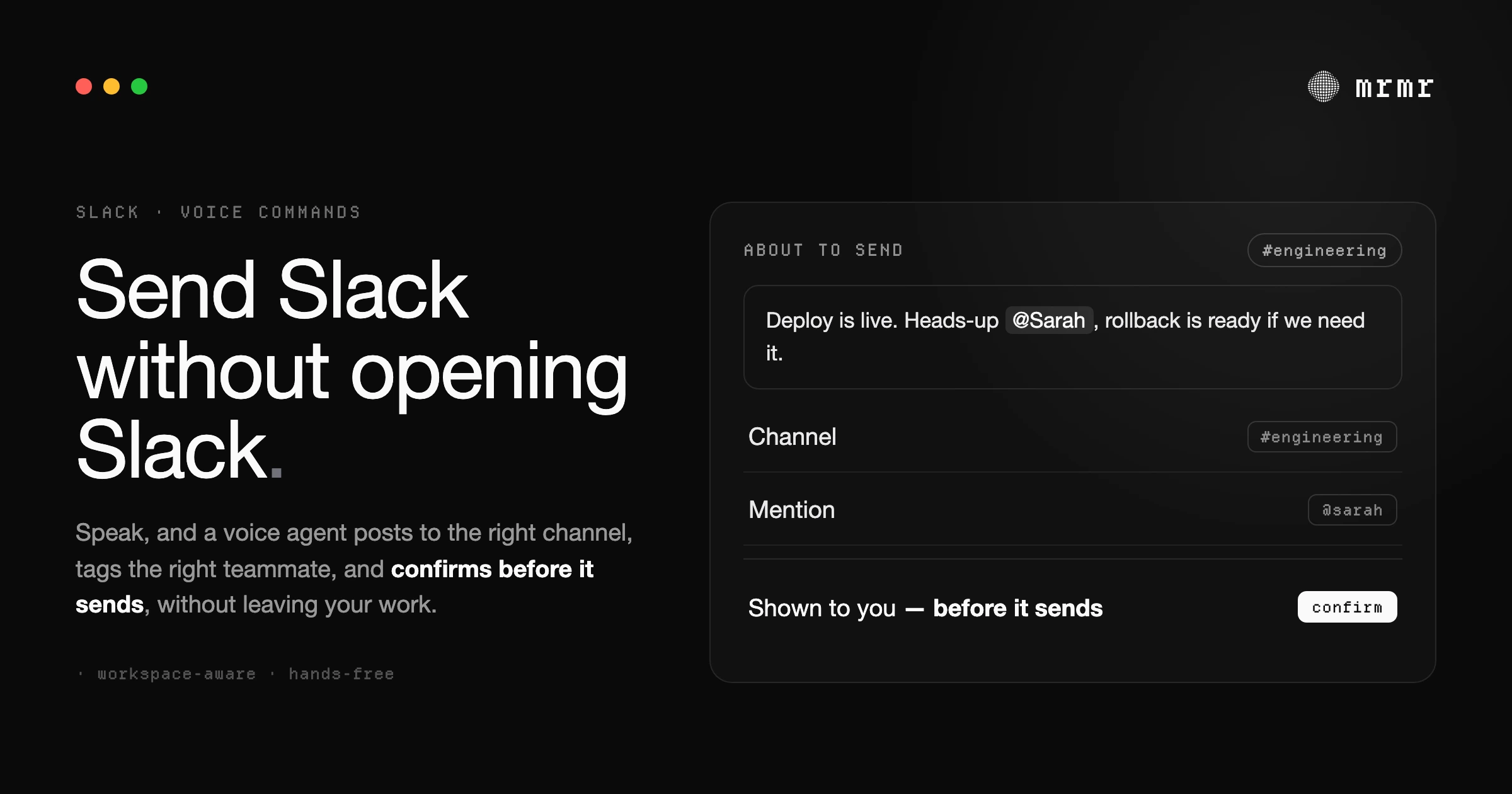
Before anything sends, you see a confirmation card showing exactly what mrmr is about to do: channel, recipient, message text. You confirm or edit, and the action executes. The conversation can keep going from there: send one message, then another, then create a ticket, all in the same session, without restarting.
mrmr knows your actual Slack workspace. When you say “the engineering channel,” it matches that to #engineering in your connected workspace. When you say “Sarah,” it resolves to the actual Sarah on your team. You speak in natural language; mrmr handles the resolution, and if something’s ambiguous, it asks.
Here’s what voice commands for Slack actually look like in practice.
Sending a message to a channel
The most common Slack action: send a message to a channel.
- “Message the engineering channel that the deployment is complete”
- “Tell the design channel the new mockups are ready for review”
- “Post in #general that I’ll be out tomorrow”
- “Send a message to the product channel with a quick update on the auth feature”
mrmr identifies the channel, parses the message content, and shows a confirmation card. You confirm; the message sends. If it’s not sure which channel you mean, it asks before doing anything.
Sending a direct message
DMs work the same way, with mrmr resolving the recipient by name.
- “Send Sarah a DM that I’ll be 10 minutes late”
- “Tell Marcus the PR is ready for review”
- “Message Priya that I pushed the fix”
- “DM the design lead that I have a quick question”
If multiple people match the name (two Sarahs on your team, for example), mrmr asks which one you mean, or you pick from the confirmation card, before sending.
Replying in a thread
You can reply to threads by voice; mrmr can target the most recent thread or the one you reference.
- “Reply in the latest thread that I’ll handle it”
- “Respond to the deployment thread that the rollback is complete”
Thread replies still show a confirmation card with the message and target before sending.
Mentioning teammates
Tagging people in messages happens naturally; mrmr resolves @-mentions from the names you say.
- “Message engineering and tag Sarah that the deploy is live”
- “Post in #design and mention Marcus that the icons are uploaded”
The confirmation card shows the message with the mention rendered, so you can verify the right person was tagged before sending.
Chained Slack workflows: Slack plus other apps
This is where voice commands for Slack become qualitatively different from anything Slack’s built-in tools can do. Because Agent Mode is a conversation, you can chain a Slack action with actions in other apps (Linear, Google Calendar, Google Tasks, Google Meet, Zoom, Notion, Gmail, and more), and mrmr figures out the steps and runs them in order.
- “Create a high-priority Linear ticket for the login bug and message engineering in Slack with the ticket link” creates the Linear issue first, then queues a Slack message to
#engineeringwith the actual ticket link from the newly created issue - “Create an instant meeting and send the link to the engineering channel” generates a Zoom or Google Meet link, copies it to your clipboard, and queues a Slack message to
#engineeringwith the link - “Schedule a follow-up at 2pm tomorrow and send Sarah the calendar invite link” creates a Google Calendar event, then sends Sarah a Slack DM with the event details
- “Create a task to review the PR and message the engineering channel that I’m on it” creates a Google Task and sends a Slack message in the same flow
- “Create a Linear ticket for the failing test, schedule a 30-minute slot tomorrow morning to fix it, and tell the QA lead in Slack what we’re doing”: three actions across three apps in one conversation
Every action that writes shows its own confirmation card. You can review, edit, or cancel any individual action without affecting the others. Nothing sends, creates, or changes until you approve it.
This is the part Slack’s native features can’t reach. Slash commands stop at the Slack boundary. Keyboard shortcuts only work inside Slack. A voice-first interface treats Slack as one app in your workflow rather than a destination you have to visit.
How voice commands for Slack compare
| Capability | Slack message field (macOS dictation) | Slack slash commands | Slack keyboard shortcuts | Voice-first interface (mrmr) |
|---|---|---|---|---|
| Send a message without opening Slack | ✗ | ✗ | ✗ | ✓ |
| Send a DM by saying someone’s name | ✗ | Partial (typed) | Partial (typed) | ✓ |
| Reply to a thread by voice | ✗ | ✗ | ✗ | ✓ |
| Mention teammates by voice | ✗ | ✗ | ✗ | ✓ |
| Send a message to a channel by voice | ✗ | ✗ | ✗ | ✓ |
| Chain Slack with other apps in one conversation | ✗ | ✗ | ✗ | ✓ |
| Asks clarifying questions when unsure | ✗ | ✗ | ✗ | ✓ |
| Confirmation before sending | N/A | ✗ | ✗ | ✓ |
| Hands-free | ✗ | ✗ | ✗ | ✓ |
| Workspace-aware (resolves “engineering channel” to #engineering) | N/A | N/A | N/A | ✓ |
How does mrmr know which channel and which teammate?
A reasonable concern with voice commands for Slack: how does the system know “the engineering channel” means #engineering and not #engineering-on-call or #engineering-leads? How does “Sarah” resolve to the right Sarah?
When you connect Slack to mrmr, mrmr caches a limited set of workspace metadata: channel names and IDs, member display names and IDs, channel privacy flags, timezones. This cache is what powers the resolution. When you speak a command, mrmr matches the words against the cached workspace data to identify the most likely channel or person.
If the match is ambiguous (two Sarahs, three channels with “engineering” in the name), mrmr asks which one you mean, or surfaces the options on the confirmation card, before sending. It never silently guesses on a destination it isn’t confident about.
Connecting Slack uses standard OAuth. mrmr never sees or stores your Slack password, and you can revoke access at any time from your Slack workspace’s app management settings.
How to set up voice commands for Slack on Mac
Setting up voice commands for Slack with mrmr takes a few minutes:
- Install mrmr on macOS (private beta: join the private beta or book a setup call for fast-track access)
- Grant Microphone and Accessibility permissions
- Connect your Slack workspace via the integrations page (OAuth flow, takes about 15 seconds)
- Press
Fn + Shiftto start Agent Mode, then speak naturally
The first time you run a Slack action, mrmr fetches your workspace metadata in the background to populate the cache. After that, every command resolves against your real Slack workspace: your channels, your teammates, your DMs.
If you use multiple Slack workspaces, mrmr supports connecting more than one. You can specify the workspace in your request (“send a message in the consulting workspace…”) or set a default.
Frequently asked questions
Can I send Slack messages by voice on Mac without opening Slack? Yes. With a voice-first interface like mrmr, you start Agent Mode, say something like “message engineering that the deployment is complete,” and the message sends after you confirm. Slack itself doesn’t have a feature for this; macOS dictation only works inside Slack’s message field, which still requires opening the app.
Does Slack have native voice commands? No. Slack supports voice messages (recorded clips), Huddles (real-time audio), and dictation in the message field via macOS, but it doesn’t have voice commands in the sense of “speak an action and Slack executes it.” Slash commands and keyboard shortcuts are the closest equivalent, and both require typing.
How is voice control different from Slack slash commands? Slash commands run inside Slack: you have to open Slack, focus a text field, and type the command. Agent Mode in a voice-first interface runs from anywhere on your Mac without opening Slack at all, and it’s a conversation rather than a single typed command. It can also chain Slack with actions in other apps, which slash commands can’t.
Is it safe to connect Slack to a third-party voice tool? mrmr connects to Slack through OAuth, which means it never sees or stores your Slack password. Permissions are scoped to what the app needs to perform actions you confirm. You can revoke access at any time from Slack’s workspace app management page. mrmr doesn’t read your message history; it only sends messages you explicitly confirm.
Can I reply to Slack threads by voice? Yes. You can ask mrmr to reply in the most recent thread or reference a specific thread by topic. The confirmation card shows the target thread and message before sending.
Which Slack actions can mrmr perform today? Sending messages to channels, sending DMs to teammates, replying in threads, and mentioning teammates, plus chaining Slack messages with actions in Linear, Google Calendar, Google Tasks, Google Meet, Zoom, Notion, Gmail, Cal.com, Calendly, and Attio.
Can I use voice commands for Slack hands-free?
Yes. Agent Mode is hands-free by design: once you start it with Fn + Shift, it’s a continuous conversation, so you can keep talking and acting without holding any keys. (Dictation has its own hands-free toggle via Fn + Space.)
Try it
mrmr is a voice-first interface for Mac. In Agent Mode, a voice agent takes confirmed action across Slack, Linear, Google Calendar, Google Tasks, Google Meet, Zoom, Notion, Gmail, Cal.com, Calendly, and Attio. It’s currently in private beta.
Join the private beta → Book a 20-minute setup call →
Related reading:

