Multilingual Voice Dictation on Mac: Dictate in 60 Languages (2026)
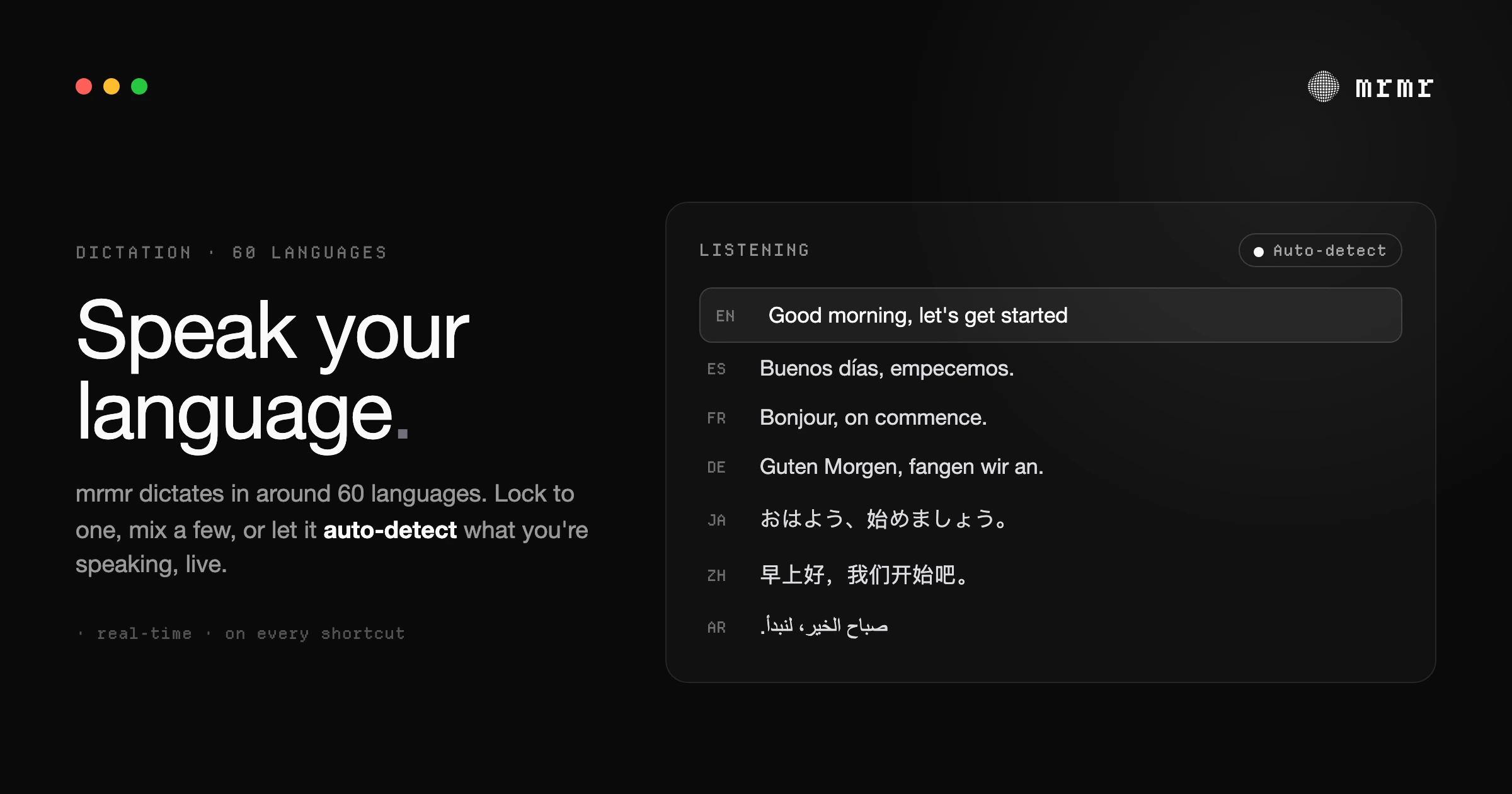
Apple's dictation is built around English. mrmr dictates in around 60 languages on Mac — lock to one, mix a few, or auto-detect what you're speaking, live. Here's how multilingual voice typing actually works.
TL;DR: Apple’s built-in dictation is usable in many languages, but it ties recognition to your input source and makes you switch manually, which falls apart the moment you mix languages. mrmr dictates in around 60 languages and lets you handle language three ways: lock recognition to one, bias toward a few you regularly mix, or leave it on auto-detect so it picks up what you’re speaking live. It transcribes in the language you speak (it doesn’t translate), cleans up the result, and works system-wide in any text field on macOS. Currently in private beta.
Most voice dictation on a Mac is built around English. It works in other languages, technically, but the experience tells you what it was designed for: you set a language, recognition assumes that language, and if you switch, you switch the setting too. For anyone who actually lives between two or three languages, that’s a constant, low-grade friction.
If you write to colleagues in English and family in Spanish, or think in Hindi but code in English, or move between Mandarin and English in the same Slack thread, the question isn’t “does dictation support my language.” Most tools list it. The question is whether dictation keeps up when you switch — without a settings trip every time. Here’s how multilingual voice dictation works on Mac in 2026, where Apple’s built-in option hits a wall, and how mrmr handles around 60 languages.
What Apple’s built-in dictation does (and where it stops)
macOS dictation supports a long list of languages, and on Apple Silicon a lot of it runs on-device. If you only ever dictate in one language, it’s fine.
The friction shows up when you don’t. Apple ties dictation language to your enabled input sources, and switching the recognition language is a manual step, not something it infers from your voice. You can add several languages, but you’re still telling the system which one you’re speaking before you speak it. Say a Spanish sentence while it’s set to English and you get phonetic mush. There’s no real notion of “just figure out what I’m saying,” and there’s certainly no graceful handling of a sentence that starts in one language and ends in another.
On top of that, you inherit the same limits built-in dictation has in any language: no filler-word cleanup, no personal dictionary for names and jargon, and it ends after 30 seconds without speech. (We cover those in detail in how to use voice dictation on Mac.) Multilingual just makes the seams more obvious.
How mrmr handles languages: lock, bias, or auto-detect
mrmr takes around 60 languages and gives you one Voice setting with three ways to use them, depending on how you actually speak.
Lock to one language. Pick a single language and recognition commits to it. This is the most accurate option when you know you’ll be speaking one language for a stretch — drafting a document in German, writing support replies in Portuguese. There’s no chance of the model second-guessing itself, so edge cases (numbers, names, homophones across languages) resolve more cleanly.
Bias toward a few. Add the two or three languages you actually move between, and mrmr leans toward those without forcing a single choice. This is the setting for genuinely bilingual and trilingual work: it narrows the field to your languages, so recognition is sharper than wide-open auto-detect but still flexible enough to follow when you switch.
Auto-detect. Leave the language list empty and mrmr detects what you’re speaking, live, as you talk. You don’t set anything; you just speak, and it follows. This is the most hands-off option — useful when you genuinely don’t know in advance which language a given dictation will be, or when you want zero configuration.
The practical point: you match the setting to your situation instead of matching your speech to the setting. One language today, three tomorrow, auto-detect when you’re not sure — all without leaving the app or digging through system preferences.
Switching languages mid-flow
The case built-in tools handle worst is code-switching: changing language within a single stream of speech. It’s completely normal for multilingual speakers — a Hindi sentence with English technical terms, a French message with an English product name, switching to your first language for an aside and back.
With lock-to-one, that’s not the goal; you’ve committed to a language on purpose. But with bias-toward-a-few or auto-detect, mrmr is built to follow the switch rather than fight it, because it isn’t pinned to a single language the way input-source-based dictation is. You speak the way you actually speak, and the transcript reflects it.
It transcribes, it doesn’t translate
One important clarification, because people conflate the two: mrmr’s multilingual dictation transcribes in the language you speak. Say a sentence in Japanese, you get Japanese text. Say it in Spanish, you get Spanish text. It is not a translator — it’s not turning your Spanish into English. That’s the right behavior for dictation: the whole point is to put your words, in your language, into the text field in front of you, cleaned up and ready to send.
(If you want to act on speech rather than just type it — send a message, create an event — that’s Agent Mode, a separate capability layered on top of dictation. This article is about dictation itself.)
Getting names and jargon right
Accuracy in any language isn’t just about phonetics; it’s about the specific words you use that no general model has seen. mrmr’s personal dictionary lets you teach it the names, brands, and jargon you say often, so they come out spelled the way you mean across your dictations rather than getting “corrected” into something generic. Combined with context-aware transcription — mrmr considers the app and the text around your cursor — that’s what keeps proper nouns and domain terms intact, which matters more, not less, when you’re working outside English.
Where multilingual dictation works
mrmr’s dictation is system-wide: any text field, any app on macOS. That doesn’t change in another language. Hold the dictation key and speak in any of the supported languages, and the polished text lands at your cursor in:
- Email — Gmail, Outlook, Apple Mail
- Messaging — Slack, Teams, WhatsApp, iMessage
- Documents — Google Docs, Notion, Word
- Code editors and AI tools — Cursor, VS Code, ChatGPT, Claude, Perplexity
- Anywhere else with a text input, including any website
There’s no per-app language setting to manage. Your Voice setting follows you everywhere.
Multilingual dictation: Apple Dictation vs mrmr
| Capability | Apple Dictation | mrmr |
|---|---|---|
| Number of languages | Many | ~60 |
| Switch language without changing input source | ✗ | ✓ |
| Auto-detect the language you’re speaking | ✗ | ✓ |
| Bias toward a few languages you mix | ✗ | ✓ |
| Lock to a single language | ✓ | ✓ |
| Follows mid-sentence language switches | ✗ | ✓ (bias / auto-detect) |
| Removes filler words and formats automatically | ✗ | ✓ |
| Personal dictionary for names and jargon | ✗ | ✓ |
| Works system-wide in every app | ✓ | ✓ |
How to set up multilingual dictation on Mac
- Install mrmr on macOS (private beta: join the private beta or book a setup call for fast-track access).
- Grant Microphone and Accessibility permissions.
- Open the Voice setting and choose your approach: pick one language to lock to it, add a few to bias toward them, or leave it empty to auto-detect.
- Place your cursor in any text field, hold the dictation key, and speak. Polished text appears in the language you spoke.
You can change the setting anytime as your day changes — lock to one language for a focused writing session, switch back to bias or auto-detect when you’re moving between languages again.
Frequently asked questions
How many languages does mrmr support? mrmr’s dictation supports around 60 languages, covering major European, East Asian, South Asian, and Middle Eastern languages among others. You can lock recognition to one, bias toward a few, or auto-detect.
Do I have to choose a language before I start dictating? No. You can leave the language list empty and mrmr will auto-detect what you’re speaking, live. If you prefer more accuracy for a known language, you can lock to it or bias toward the few you use.
Can mrmr detect the language automatically? Yes. With auto-detect, you don’t set anything — mrmr picks up the language as you talk. If you regularly move between a specific few, biasing toward those gives sharper recognition than fully open detection.
Can I mix two languages in one dictation? Yes, with bias-toward-a-few or auto-detect. mrmr isn’t pinned to a single language the way input-source-based dictation is, so it can follow when you switch mid-flow. If you lock to one language, it stays in that language by design.
Does mrmr translate what I say? No. mrmr transcribes in the language you speak — Spanish in, Spanish out. It’s dictation, not translation. The goal is to get your own words into the text field, cleaned up and ready.
Is dictation in other languages as accurate as English? Accuracy varies by language and audio conditions, but the upgraded speech engine handles accents, names, and technical terms well, and the personal dictionary lets you lock in the specific terms you use. Locking to a known language gives the most consistent results.
Does multilingual dictation work in every app? Yes. mrmr’s dictation is system-wide on macOS, so it works in any text field — email, Slack, docs, code editors, browsers — in any supported language, with no per-app setup.
How is this different from Apple’s built-in dictation? Apple ties recognition to your input source and makes you switch languages manually, with no auto-detect and no graceful handling of mixed-language speech. mrmr lets you lock, bias, or auto-detect, follows mid-sentence switches, and cleans up the result.
Try it
mrmr is a voice-first interface for Mac. Its dictation now works in around 60 languages — lock to one, mix a few, or auto-detect what you’re speaking, live — with smart formatting and a personal dictionary, system-wide in every app. It’s currently in private beta.
Join the private beta → Book a 20-minute setup call →
Related reading:

